How to Turn Your Old Laptop/PC to a Real Serverthat works
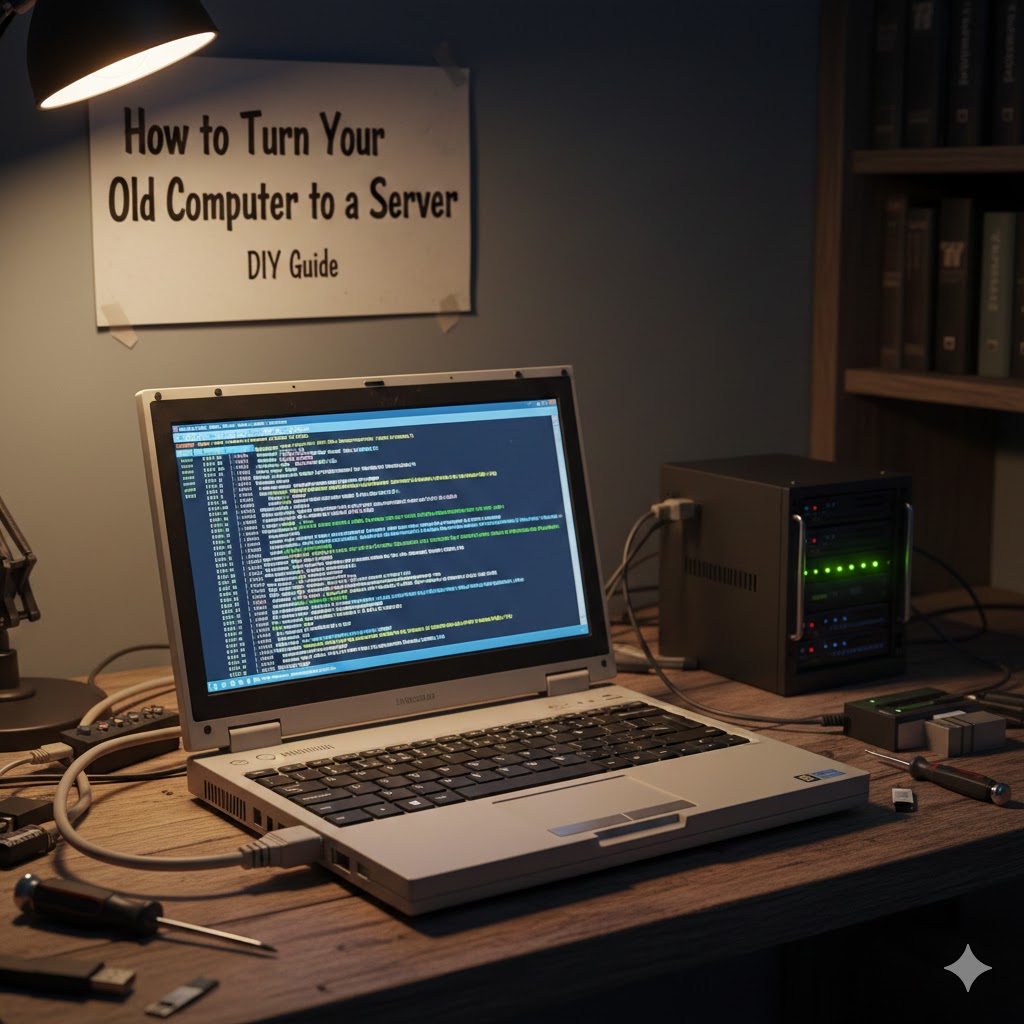
Every home has that one forgotten device: a dusty laptop from years ago, abandoned on a shelf, too slow or too broken to be useful anymore. Instead of throwing it away, that “dead” machine can become a fully functional home server that hosts your projects, runs Docker containers, and even powers a Minecraft server for you and your friends.
In this guide, you will walk through the entire journey: breathing life into an old laptop with cheap parts, installing Ubuntu Server, configuring the network and SSH, deploying applications with Docker, and finishing with a working Minecraft server — all with minimal cost.
Step1: Rescuing the Old Hardware The story starts with an old laptop discovered after years in storage, covered in dust and practically unusable; it had three major problems: no RAM, a dead hard drive, and a completely broken screen that showed almost nothing. Instead of buying fancy new components, the goal was to keep things as cheap as possible, so the RAM was upgraded using the cheapest compatible DDR3 sticks found in an open market, just enough to make the device boot again, while an old external hard drive that was no longer in use was removed from its USB enclosure and installed inside the laptop as its main drive, and the damaged screen was left as‑is because replacing it would cost more than the laptop itself. At this point, the laptop technically had the parts it needed—RAM, a working disk, and a motherboard that could power on—but there was still one big obstacle: how to use a machine whose internal screen could not show anything.
Step2: Forcing HDMI output on an old laptop with a dead or unusable screen is possible by physically disabling the built‑in display so the system is compelled to use the HDMI port as its primary output right from power‑on, including for BIOS and installer screens. This approach is especially useful when the internal panel is broken and you cannot see anything to change display settings in the operating system, leaving you effectively “blind” during boot and setup. Many older laptops are designed so that the internal LCD is treated as the primary display at the firmware level, and external ports like HDMI or VGA only become active in a useful way once the operating system has loaded graphics drivers and applied user display preferences. As a result, although HDMI might work fine once Windows or Linux has started, it often shows nothing at all during early boot, making it impossible to enter BIOS, select boot devices, or run OS installers without a working internal screen.
The workaround relies on a simple but powerful idea: if the laptop no longer detects an internal display, it often defaults to sending video through whatever output remains available, typically HDMI or VGA. In technical terms, the internal panel connects to the motherboard via a dedicated display cable, usually LVDS on older systems or eDP on somewhat newer ones, and the firmware checks for this panel during initialization. When that cable is disconnected at the motherboard end, the system may interpret the absence of the panel as a signal that no internal screen exists, prompting it to enable and prioritize the external video port early in the boot process. This behavior is not universally guaranteed, but numerous real‑world experiences from technicians and hobbyists show that on many laptops, removing the internal panel from the equation causes the BIOS splash screen, setup interface, and boot loader menu to appear directly on an external HDMI display. In practice, this transforms a “blind” machine into one that can be fully controlled and configured using only an external monitor, which is crucial for reinstalling an OS, changing BIOS options, or troubleshooting boot issues when the built‑in screen is unusable.
Carrying out this hardware hack involves carefully opening the laptop lid assembly, exposing the display panel, and unplugging its cable from the motherboard, all while avoiding mechanical or electrical damage. Typically, the process begins with removing the screen bezel—the plastic frame around the LCD—using thin, non‑metal tools such as plastic spudgers or guitar picks to release plastic clips without cracking the bezel or scratching the panel. Once the bezel is off, the LCD panel can be gently tilted or lifted forward, revealing the display cable that exits from the back of the panel and runs down into the main chassis where the motherboard resides. This cable is then followed to its connector on the motherboard, which often sits under a small metal shield or tape; the connector usually has either a friction fit or a latch that must be released carefully before the cable is pulled free. The crucial step is to unplug the cable at the motherboard side, not to cut or force it, because a clean disconnection keeps the modification reversible while minimizing the risk of damaging the connector pins or the cable itself. After disconnecting, the panel can be set back in place or left in position with its signal cable free, and any exposed conductive areas should be checked to ensure nothing is shorting before the laptop is powered on again.
When the machine is powered up after the internal panel has been disconnected, and an HDMI cable is attached to an external monitor, many systems will now send all video output directly through HDMI from the very first stage of boot. Instead of a blank external screen until the OS loads, you may immediately see the manufacturer’s logo, BIOS entry prompts, and any boot menu or disk selection screens on the HDMI monitor. This enables full visibility for operations that previously had to be done “by feel,” such as entering BIOS setup with function keys, choosing a USB drive as the boot device, or navigating a text‑mode or graphical installer for Windows, Linux, or another operating system. The method effectively bypasses all the OS‑level display configuration issues, function‑key based display toggles, and driver dependencies that normally restrict HDMI output in the pre‑boot phase on older laptops. From the user’s perspective, a laptop that was previously unusable without a functioning internal display becomes fully manageable through a standard external monitor, which can extend the practical life of older or damaged hardware significantly.
However, this approach carries important technical and safety considerations that must be weighed before attempting it. First, behavior varies between manufacturers and models; some laptops may still refuse to show BIOS on HDMI even with the internal panel disconnected, or may only initialize the external port after certain firmware conditions are met. There is also a non‑trivial risk of physical damage: plastic clips on the bezel can snap, screws or brackets can be lost, and the delicate LVDS/eDP cable or motherboard connector can be torn or bent if too much force is used. Static electricity is another concern, as discharging onto exposed motherboard components could damage them, so working on a non‑conductive surface and grounding yourself is recommended. On the positive side, the modification is usually reversible; if the cable and connector remain intact, reconnecting the internal display restores the laptop to its original configuration. In scenarios where the internal screen is already beyond repair, the trade‑off often favors attempting this hack, since a successful outcome can completely restore practical usability by promoting HDMI to the primary output for BIOS, boot, and OS configuration tasks.
Step3 Installing Ubuntu Server the Easy Way
With the hardware working and the HDMI output forced to an external screen, the next goal is to turn the old laptop into a real home server by installing Ubuntu Server. Ubuntu Server is a lightweight, text‑based Linux distribution that is well‑suited for self‑hosting, media servers, small web services, and other always‑on tasks because it runs with minimal overhead compared to a full desktop environment. Choosing this kind of system for an old laptop gives new life to hardware that might otherwise be too slow or fragile for everyday desktop use, while still being perfectly capable of handling background server jobs.
Creating the Bootable USBThe installation journey starts on another working computer, where the Ubuntu Server installer image is prepared on a USB drive. The first step is to visit the official Ubuntu website and download the latest Ubuntu Server ISO, making sure to pick the version that matches the laptop’s CPU architecture (typically 64‑bit for anything reasonably modern). After downloading the ISO, a USB flashing tool such as BalenaEtcher, Rufus, or the Raspberry Pi Imager is used to write the image onto a USB stick, turning it into a bootable installer instead of just a storage device. Once the flashing process completes, the USB drive is safely ejected and plugged into one of the old laptop’s USB ports, with the HDMI monitor connected so that the boot process is visible.
To start the installer, the laptop must be instructed to boot from USB rather than the internal hard drive. Immediately after powering on, the boot menu key is pressed repeatedly—on many machines this is F12, but it can also be F9, F10, Esc, or another key depending on the manufacturer. When the boot menu appears, the USB device is selected from the list of available boot options, which typically shows up under its brand name or as a “USB HDD” entry. Once chosen, the system should load directly into the Ubuntu Server installer environment from the USB instead of starting the existing operating system, giving full control over how the disk will be used for the new server setup.
Basic Installer Choices
The Ubuntu Server installer is text‑driven but straightforward, asking a series of questions that define the basic environment and defaults for the new system. The first choice is the interface language; selecting English is often the most practical option, particularly for server use, because most documentation, troubleshooting guides, and community support are written with English terminology in mind. Next, the keyboard layout is selected, and unless there is a clear need to match a different physical layout (for example, a non‑US or non‑QWERTY keyboard), leaving the default layout avoids confusion later.
When prompted to choose the server type or edition, selecting the regular Ubuntu Server option is usually best, rather than minimized or highly specialized variants. The standard server install includes the essential tools and services for most home or small‑office use cases without installing heavy graphical components, keeping the system lean but flexible. During the setup, the installer may also ask whether to enable third‑party drivers or proprietary components; for a basic headless server that will mostly run over network and not rely on special graphics or wireless chipsets, these add‑ons can typically be skipped, reducing complexity and potential license concerns. This keeps the initial system clean and focused on core server functionality rather than desktop‑style hardware extras.
Network Configuration During Install
Configuring networking during installation is one of the most important steps, because it defines how the server will be reached later—especially if it will be headless and accessed through SSH. The installer offers a choice between Ethernet (LAN cable) and Wi‑Fi; if the laptop is close enough to the router, a wired Ethernet connection is usually preferable because it is more stable and easier to manage for servers. If Wi‑Fi must be used, the installer presents a list of detected wireless networks; the correct network is selected, and the Wi‑Fi password is entered carefully to ensure connectivity, since typos at this stage can cause frustrating connection problems after reboot.
Once the network link is confirmed, the installer automatically selects a mirror (download server) based on the region, ensuring that updates and packages are fetched quickly from a nearby source. It then asks for basic identity information: a full name for reference, a device name (hostname) that will appear on the network, and a username and password for the primary account. These credentials become the keys to the server: they are used for local logins at the console and, more importantly, for remote SSH access once the system is running headless. Choosing a strong password and a clear, memorable hostname helps maintain both security and organization when multiple devices are on the same network.
Finishing the Installation and First Boot
After network and user details are entered, the installer guides you through disk setup and partitioning, where you decide how the laptop’s internal drive will be used. In many simple home‑server scenarios, allowing the installer to use the entire disk with the guided option is enough, letting Ubuntu automatically create the necessary partitions without manual layout. Once these choices are confirmed, the installer proceeds to copy files, configure the system, and install the base set of packages, a process that can take several minutes depending on the age and speed of the laptop’s CPU and storage.
When installation completes, the system prompts you to remove the USB drive before rebooting. After pulling the USB stick and pressing Enter, the laptop restarts and this time boots from its internal drive into the fresh Ubuntu Server environment. Because the machine was configured with proper network settings and user credentials during installation, it is now ready to be treated as a true server: it can be accessed via the attached HDMI display and keyboard, or more conveniently over the network using SSH from another computer. From this point forward, additional server roles—such as file sharing, media streaming, web hosting, or container orchestration—can be layered on top of a clean, efficient base system tailored specifically for server workloads.
Step 4:
On the first boot after installation, Ubuntu Server loads into a text‑based login screen where the system is ready to be checked, secured, and prepared for remote access. This stage is about confirming that the basics—login, networking, and SSH—are working so the laptop can truly function as a headless server managed from another machine.
First login and basic connectivity
When the server finishes booting, a console login prompt appears showing the hostname and asking for a username and password. Enter the username and password created during the Ubuntu Server installation; after successful authentication, a shell prompt appears, confirming that the local login and user configuration are correct. With access to the shell, the next priority is verifying that the machine can reach the internet, since updates, package installs, and remote access all depend on working network connectivity.
A simple and effective way to test connectivity is to ping a well‑known public IP address such as 8.8.8.8, which belongs to Google’s public DNS service and is widely used as a connectivity test target. Running a command like ping 8.8.8.8 sends ICMP echo requests; if the network is working, a series of replies will appear with time measurements in milliseconds and zero or very low packet loss. Seeing these responses confirms that the laptop can reach the wider internet and that the network configuration done during installation—whether via Ethernet or Wi‑Fi—is functioning correctly.
What SSH is and why it matters
To avoid keeping a keyboard, mouse, and monitor permanently attached to the old laptop, the next step is to enable SSH so the server can be controlled entirely over the network. SSH (Secure Shell) is a protocol that provides encrypted, authenticated command‑line access to a machine using its IP address and a valid username and password (or keys), preventing eavesdropping and credential theft on the local network. With SSH enabled, the laptop can sit quietly in a corner, closet, or on a shelf, while all administration—software installation, configuration, monitoring, and log viewing—happens from a main computer or even a phone.
On Ubuntu, SSH server functionality is provided by the OpenSSH server package, which is not always installed by default on minimal or server images. Enabling SSH therefore involves installing OpenSSH, ensuring the service is running, and configuring it to start automatically at boot so remote access is always available after reboots. This small amount of setup transforms a locally‑bound Ubuntu instance into a fully manageable networked server that can be reached from anywhere on the LAN and, if desired and secured properly, over the internet.
Installing and starting the SSH service
From the shell prompt on the server, the process typically begins with updating the package index to ensure that the latest repository information is available. A command such as sudo apt update refreshes the list of packages and prepares the system to install new software. After that, the OpenSSH server is installed using a command like sudo apt install -y openssh-server, which downloads and configures the SSH daemon and associated tools. Once installation finishes, the SSH service (often just called ssh) is present on the system, but it must be running and enabled to accept incoming connections.
To make SSH immediately available and persistent across reboots, a combined systemd command can be used: sudo systemctl enable --now ssh. This both starts the SSH daemon right away and configures it to launch automatically at every system start, so there is no need to manually start it after each reboot. Verifying that the service is healthy is done with sudo systemctl status ssh, which should display a status line reading “active (running)” along with information about when it started; this confirms that the daemon is running and listening for connections on the default port 22.
Confirming remote access readiness
With SSH running, the final checks ensure that it is actually reachable from another device on the network. First, the server’s IP address is identified using a command such as ip a, then noting the IPv4 address associated with the active network interface (for example, 192.168.x.x). On the main computer, a terminal or SSH client is opened and a command in the form ssh username@server_ip is used, substituting the chosen username and the server’s IP address. If everything is configured properly, the client will prompt to accept the server’s host key on first connection and then ask for the user’s password; upon entry, a remote shell prompt appears, showing that full control over the server is now available from afar.
At this point, the physical keyboard and monitor attached to the old laptop are no longer necessary for day‑to‑day operation. The system can be shut down, rebooted, updated, and configured entirely via SSH, allowing it to run headlessly in any convenient location while behaving as a dedicated home server on the network.
Step 5:
For smooth and predictable access, a home server should use a static local IP address so it does not change every time the router hands out addresses. This keeps SSH connections, bookmarks, and any services you expose on the network working reliably instead of breaking whenever the server’s IP shifts.
In a typical home network, there are two kinds of IP addresses to think about. The public IP address is the one assigned by your internet service provider and is what websites and external services see when any device in your home goes online. The local/private IP address exists only inside your home network and is assigned by your router to individual devices, usually in reserved ranges such as 192.168.x.x, 172.16.x.x–172.31.x.x, or 10.x.x.x, which are not routable on the public internet. Your router sits in the middle, using NAT (Network Address Translation) to map many private IPs behind that single public IP, allowing multiple devices to share one connection while still appearing as one address to the outside world.
By default, almost all home routers use DHCP (Dynamic Host Configuration Protocol) to assign those local/private IPs automatically whenever a device connects. DHCP hands out addresses from a pool (for example 172.16.0.100–172.16.0.200), and each lease is temporary, so the same device might receive 172.16.0.100 today but 172.16.0.90 a few days later after a reboot or lease renewal. That behavior is convenient for phones and laptops that come and go, but it is a problem for a server: any SSH shortcut, port‑forward rule, or service URL pointing at the old IP will suddenly fail once the address changes.
To solve this, the server is configured with a static IP address inside its own network settings instead of relying on DHCP. The idea is to choose an IP within the same subnet as the router’s gateway but outside the range the router normally uses for automatic assignments so there are no conflicts. The first step is to find the gateway IP, which is the router’s address on the LAN—commonly something like 192.168.0.1, 192.168.1.1, or 172.16.0.1. Once that is known, an IP in the same range is picked, often starting just above the gateway, such as 172.16.0.2 or 192.168.0.10, making sure it does not fall inside or clash with the router’s DHCP pool.
Next, the active network interface on the server is identified, because the static settings must be tied to the correct device. On Ubuntu Server this is done by listing interfaces (for example using ip a) and checking which one currently has a dynamic IP in your LAN range; wired interfaces are often named enp1s0, ens33, etc., while Wi‑Fi interfaces might be called wlp2s0. With the interface name, chosen static address, gateway, and DNS servers in hand, the network configuration file—usually a netplan YAML file in /etc/netplan/ on modern Ubuntu Server—is edited. In that file, you disable DHCP for the chosen interface and explicitly set the static IP (with its subnet prefix, such as /24), the gateway address, and one or more DNS servers (for example your router, 1.1.1.1, or 8.8.8.8).
After saving the netplan configuration, the network changes are applied with a command like sudo netplan apply, or by rebooting the server so the new settings take effect from startup. Once applied, the interface should always come up with the static IP you assigned instead of requesting a new one from DHCP, and you can confirm this by checking the IP again and testing connectivity to the router and the internet. From that point on, the server’s address is stable: SSH, web dashboards, file shares, or any self‑hosted applications can safely point to that one IP, turning your old laptop into a dependable and easy‑to‑reach node on your home network.
Step 6
Testing code with an AI‑based tool before deployment can dramatically improve quality and reduce the time spent on repetitive checks. This kind of workflow is especially powerful for web apps with both frontend and backend components, where manual UI clicking and API testing quickly become tedious.
The process usually starts by signing up on the testing platform’s website and logging in using Google, GitHub, or an email‑based account. After logging in, an API key is generated from the user dashboard; this key uniquely identifies your account to the AI testing service and must be kept secret, just like a password, because anyone with it could potentially run tests or access related data under your account. The key is copied once and stored securely, often in an environment variable, a secrets manager, or a local .env file that is never committed to version control.
Next, the AI testing agent is integrated into the development environment so it can run tests directly inside the editor where the code lives. Many modern tools support editor integrations through extensions or plugins for IDEs like Cursor, VS Code, or Windsurf, often with a “quick install” or guided setup flow that asks for the API key and possibly some basic preferences. Once configured, the agent becomes available as a sort of intelligent testing assistant that can read project files, understand the structure of the app, and coordinate browser or API test runs without leaving the IDE.
A key part of this workflow is surfacing expectations in a clear, machine‑readable way, usually through a PRD (product requirements document). The AI testing tool can help generate this PRD by analyzing the repository and asking prompts like “What does this app do?” and “What should a user be able to accomplish?”. The result is a structured description of features, user flows, and edge cases that becomes the basis for test generation. In the PRD or configuration window, you specify whether you are focusing on the frontend, backend, or both, which guides the tool to either drive a browser, issue HTTP requests, or exercise server logic directly.
From there, environment details are supplied so the tests can actually run against a live instance of the app. This typically includes the codebase path (so the tool knows where to look for configuration files and scripts), the port number the app uses when running locally (for example 8080 or 3000), and any login credentials or demo accounts needed to pass authentication screens. The AI testing agent can then start the application (if configured to do so), open a headless or visible browser session, and walk through key user flows—logging in, navigating, submitting forms, and calling APIs—guided by the requirements from the PRD.
As the tests run, the tool records both high‑level outcomes and detailed artifacts. It can capture HTTP responses, console logs, screenshots, and full‑length videos showing exactly how the UI behaved during each scenario. When something breaks, the test run is annotated with the steps that led to the error, making it far easier to reproduce and understand bugs than with vague “it doesn’t work” reports. At the end of each run, the agent generates a markdown report summarizing what was tested, which flows passed or failed, and which issues were detected, often with links to video recordings, stack traces, and suggested fixes.
Using this approach, developers avoid hand‑writing large numbers of brittle UI tests or manually clicking through the same workflows over and over every time code changes. The AI‑driven agent can quickly re‑run the same scenarios after each refactor, catching regressions in both frontend behavior and backend APIs long before deployment. This not only saves time but also significantly reduces the risk of shipping broken or partially working features to the server, particularly in multi‑page flows, authentication sequences, and complex user journeys that are easy to break accidentally. For a home server or self‑hosted environment, where monitoring and rollback may be limited, having these AI‑generated test runs as a safety net can be the difference between a smooth deployment and a frustrating debugging session on a live system.
Step 7
Running applications in Docker on the old laptop turns it into a flexible container host where each project is isolated, reproducible, and easy to move or rebuild. Docker bundles your app code, its runtime, and dependencies into containers so the environment is consistent whether it runs on your laptop, a VPS, or another machine.
From your main computer, you begin by connecting to the server over SSH using the static IP and username configured earlier. Once logged in, Docker Engine is installed following the official Linux instructions, which generally involve updating package lists, adding Docker’s repository and GPG key if needed, and then installing packages such as docker-ce, docker-ce-cli, containerd.io, and the Docker Compose plugin with the system package manager. After installation, the Docker service is started and enabled to run at boot, often with commands like sudo systemctl enable --now docker, and its status is checked using sudo systemctl status docker to confirm it shows as “active (running)”. A quick sanity check is to run sudo docker run hello-world, which pulls a small test image and prints a confirmation message when the container executes successfully.
To orchestrate multi‑container applications—such as a web server plus database—Docker Compose is added on top of Docker Engine. On modern Linux servers, the recommended method is to install Docker Compose as a plugin via the package manager (for example, sudo apt-get install docker-compose-plugin on Ubuntu), or alternatively to download the standalone binary directly from the official GitHub releases and place it somewhere in your PATH, such as /usr/local/bin/docker-compose, then mark it as executable with chmod +x. Once installed, its availability is verified with docker compose version or docker-compose --version, confirming that the server is ready to interpret docker-compose.yml files and manage composed stacks.
With Docker and Docker Compose in place, the once‑bare Ubuntu Server becomes a capable container host able to run multiple isolated services simultaneously on the old laptop. Each application can be defined declaratively in a YAML file, specifying images, ports, volumes, and environment variables, which makes deployments repeatable and easy to tear down or recreate without polluting the base system.
step 8:
Connecting Visual Studio Code to the Ubuntu server over SSH turns the old laptop into a seamless remote development environment where files, terminals, and tools feel local but actually run on the server. This avoids clumsy manual copying and lets projects live directly in the place where they will be built and deployed.
On your local machine, the process starts by installing the Remote – SSH extension from the VS Code marketplace. Once installed, VS Code gains a new SSH entry point, and you can add a remote host that matches the same command you already use in a terminal, such as ssh username@172.16.0.x. VS Code stores this configuration in your SSH config file (usually ~/.ssh/config), which can be edited directly from the “Remote-SSH: Open SSH Configuration File…” command if you mistype the IP or want to change the host entry later. After choosing “Remote-SSH: Connect to Host…” from the command palette and selecting your server, VS Code connects, installs its remote server component, and shows a green status bar indicating that you are now working in a remote context.
Once connected, any integrated terminal you open in that VS Code window runs directly on the server, not on your local machine. A common pattern is to create a dedicated dev directory on the server—using the terminal, for example mkdir -p ~/dev—to store all your projects in a single place. In the VS Code remote explorer or file explorer, you can then upload your local project by dragging the folder from a local VS Code window or file picker into the remote dev directory; recent versions of VS Code support drag‑and‑drop or context‑menu upload for copying files and folders into the remote workspace. After the upload finishes, the project appears in the remote explorer, and you can cd into it from the integrated terminal to run commands as if the code had always lived on the server
Before running Docker containers from this remote environment, it is practical to allow your current user to use Docker without prefixing every command with sudo. On Linux, Docker’s post‑installation recommendations include creating or using the docker group and adding your user to it, for example with sudo usermod -aG docker $USER, followed by logging out and back in so the new group membership takes effect. Once that is done, running docker ps in the integrated terminal should work without sudo and will list active containers when your stacks are started with Docker or Docker Compose. At that point, VS Code serves as a full remote IDE: code is edited in place on the server, commands and container orchestration run there directly, and the old laptop functions as a first‑class development and deployment host.
Step 9:
Securing Access with UFW (Uncomplicated Firewall)
Exposing services without any firewall is risky, even on a home network. Ubuntu’s **UFW** (Uncomplicated Firewall) provides a simple way to control which ports are reachable while blocking everything else by default.
On most Ubuntu systems, UFW is already installed, but you can make sure with:
                                ```bash```
                                 sudo apt update
                                 sudo apt install ufw -y
                                 sudo ufw status
                                ```````````````
By default, UFW denies all incoming connections and allows all outgoing connections, giving you a secure starting point for a home server. If you manage this laptop over SSH, first allow SSH so you do not lock yourself out:
                                 ```bash
                                 sudo ufw allow ssh
                                ``````````````````
Now enable the firewall:
                                ```bash
                                sudo ufw enable
                                sudo ufw status verbose
                                `````````````````````
With UFW active, explicitly open only the ports your containers and apps need. For example, if your frontend web app listens on port 8080 and your API backend on port 4000, run:
                                ```bash```
                               sudo ufw allow 8080/tcp
                               sudo ufw allow 4000/tcp
                              `````````````````````
This tells UFW to accept incoming TCP connections on those ports while keeping all other unsolicited traffic blocked. If you want to restrict access to your home network only (for example, the `172.16.0.0/24` subnet), you can tighten the rules further:
                              ``` bash  ``````
                              sudo ufw deny 8080/tcp
                              sudo ufw deny 4000/tcp
                              sudo ufw allow from 172.16.0.0/24 to any port 8080 proto tcp
                              sudo ufw allow from 172.16.0.0/24 to any port 4000 proto tcp
                             ````````````````````````````````````````````````````````````
This combination keeps these services available to devices on your LAN but hidden from the wider internet. Once your rules are in place and your containers are running, move to your main machine, open a browser, and enter your server’s IP followed by the port, for example:
                                ```text```````````````
                                http://172.16.0.x:8080
                                ```````````````````````````
If everything is configured correctly, your deployed site will load from the old laptop server, now protected by UFW so that only the ports you intentionally opened are reachable.
Why This Project Is Worth Doing
Turning an old laptop into a home server is more than a fun weekend experiment; it is a practical project that delivers real value. With a bit of patience and a handful of commands, you can transform hardware that might otherwise collect dust into a capable, always‑on machine that powers your personal projects, media, and even games from your own home.
One of the biggest advantages is cost. Instead of buying a dedicated server or NAS, you reuse a laptop you already own, often spending very little beyond a cheap RAM upgrade or an extra drive if you need more space. Existing hard drives or SSDs can be repurposed for containers, backups, and game data, so you get a useful home server without a large upfront investment.
This project also shines as a learning experience. By setting everything up yourself, you gain hands‑on practice with Linux, networking basics, SSH, Docker, and firewall configuration in one integrated, real‑world scenario. You do not just read about commands or copy‑paste snippets; you see how each piece fits together to expose services safely on your network, troubleshoot issues, and keep the system running over time. Those skills transfer directly to cloud servers, development work, and general system administration.
Running your own home server gives you a strong sense of self‑hosting freedom. Instead of relying on third‑party platforms for everything, you can host personal websites, APIs, dashboards, media libraries, and even lightweight game servers on your own hardware. That means more control over your data, how services are configured, and when updates or changes happen. It also becomes easier to experiment: spinning up a new service is as simple as starting another container.
There is also an important sustainability angle. Reusing an old laptop keeps functional hardware out of landfills and gives it a second life as a server. Laptops are typically quite power‑efficient compared to many desktop‑class machines, so they can run modest workloads around the clock without a large impact on your electricity bill. You get to extend the lifespan of your device and reduce electronic waste, all while learning and building useful infrastructure for yourself.
In the end, with one old laptop, some patience, and the right commands, you end up with a genuine home server capable of running modern workloads and games. It becomes a personal playground for learning, a platform for hosting anything you care about, and a concrete example of how much value you can unlock from hardware you already have.
An old laptop, a few commands, and a bit of curiosity are all it takes to turn forgotten hardware into a powerful home server that you fully understand, control, and actually enjoy using. Our Team🤍